
A programmable keyboard lets the keyboard itself remember remaps, layers, and sometimes macros. You do not need to write firmware to make useful changes. For most people, the first step is a visual configurator such as VIA; QMK is there when you need deeper control.
This guide explains the vocabulary, the practical limits, and a safe path from a first remap to more advanced firmware work.
What does “programmable” mean?
A standard keyboard sends the action chosen by its firmware for each physical key. A programmable keyboard lets you change that mapping. For example, you can put Control where Caps Lock is, place arrow keys on a function layer, or assign a shortcut to a key.
Programming does not change the keyboard’s physical layout. It changes the behavior associated with the keys that already exist.
What you can usually change
- Remaps: Assign a different key or modifier to a physical key.
- Layers: Use one key to temporarily or permanently access another map of functions.
- Macros: Send a sequence of key presses from one trigger, when the firmware and software support it.
- Tap-and-hold behavior: Tap a key for one action and hold it for another.
- Lighting controls: Change effects or colors only when the board’s hardware and firmware expose those controls.
A macro is not a magic automation system. It normally sends keyboard events, and an application may ignore, delay, or restrict them. Avoid storing passwords or other sensitive text in a macro.
What programming cannot add
Firmware cannot create hardware that is not present. A board without LEDs cannot gain RGB through a keymap. A board with no rotary encoder cannot acquire a physical knob. A 60% layout can expose arrows or a number pad on another layer, but it does not gain extra physical keys.
For the physical parts that make these behaviors possible, see keyboard anatomy.
VIA: the visual starting point
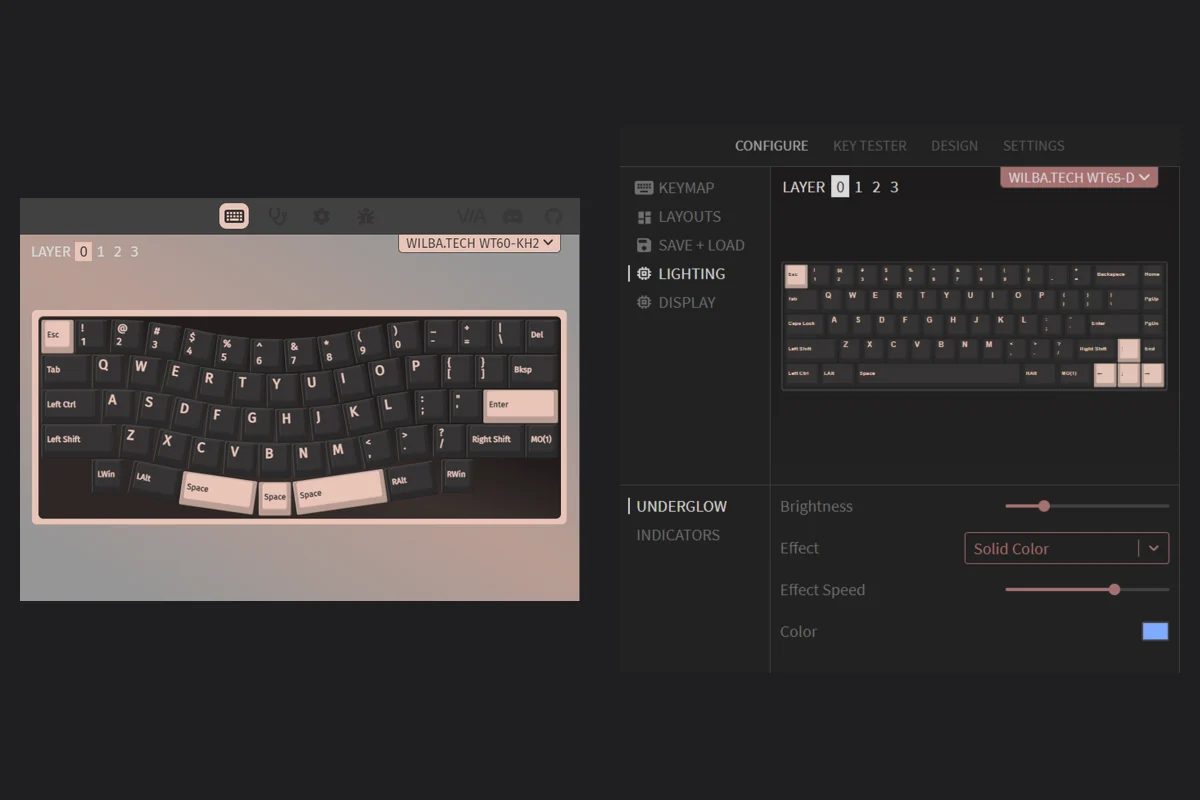
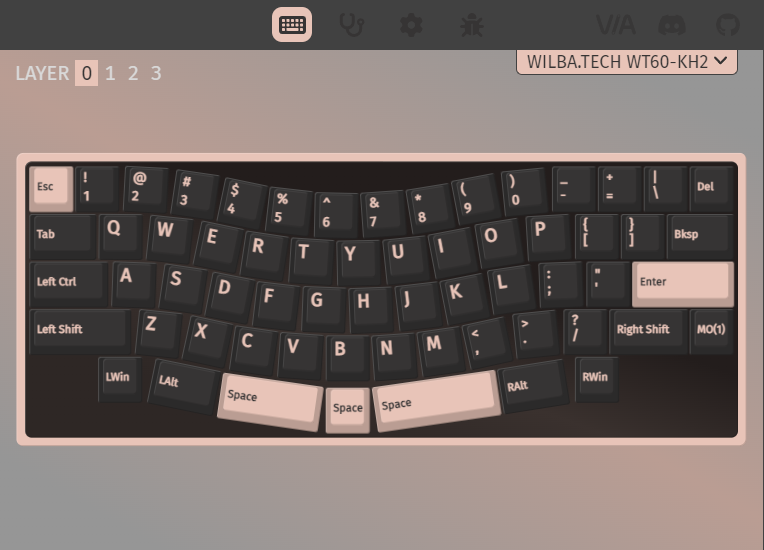
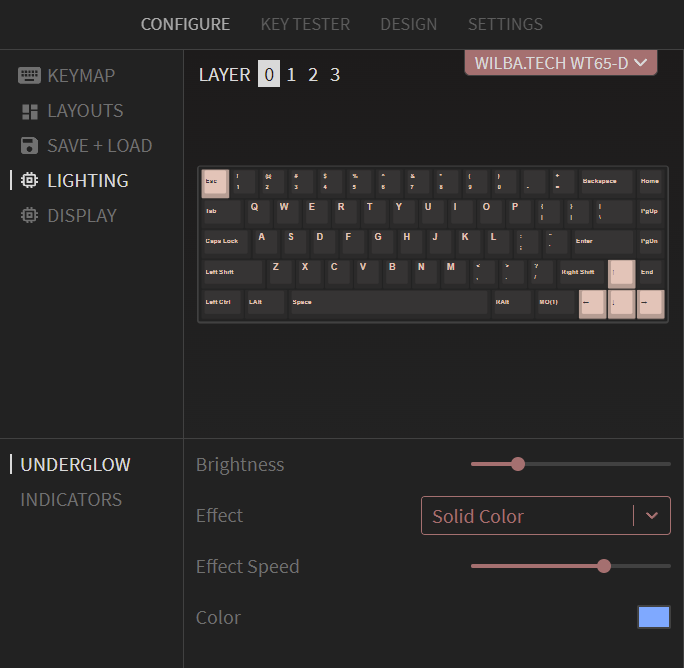
VIA is a visual configurator used by compatible keyboards. It presents a keymap, lets you select a physical key, and lets you choose the action assigned to it. The exact controls depend on the keyboard’s firmware definition.
What VIA is good at
- Moving common keys or modifiers to more comfortable positions.
- Setting up ordinary function layers.
- Creating straightforward macros where the board supports them.
- Adjusting supported RGB or backlight settings.
- Saving or exporting a keymap before experimenting.
VIA is a good fit when you want to configure a supported board without learning C or compiling firmware. It changes the configuration exposed by the board; it does not make every QMK feature available.
VIA’s limits
A keyboard must be built and configured for VIA. A board that uses QMK is not automatically VIA-compatible, and a VIA-compatible board may expose only a subset of its firmware features. The number of layers, macro behavior, lighting controls, and special keys are board-specific rather than promises to assume.
If VIA does not see the keyboard, first confirm the exact model and revision, use a data-capable USB cable, connect directly rather than through a hub, and check the manufacturer’s support instructions. Do not install a random definition or firmware file simply because the layout looks similar.
QMK: firmware-level customization
QMK is open-source keyboard firmware. With QMK, you define a keymap and, if needed, custom behavior in source files, compile the firmware, and flash it to the keyboard. This is more powerful than a visual remap, but it also introduces a real firmware workflow.
QMK can provide behaviors such as:
- Multiple layers with different activation rules.
- Tap dance, where timing or repeated taps choose different actions.
- Combos, where pressing keys together produces another action.
- One-shot modifiers and leader-style sequences.
- Custom code for behaviors that a graphical configurator does not expose.
The practical limits are the keyboard’s controller memory, available firmware features, and the time you want to spend maintaining the configuration. “Unlimited layers” is not a useful guarantee: a board has finite resources, and each layer still needs a sensible design.
VIA and QMK are related, not interchangeable
Some VIA-compatible keyboards use QMK underneath. VIA can be a friendly way to edit the keymap that the firmware exposes. Other QMK boards are configured only from source, and some keyboards use different firmware altogether. Check the board’s documentation instead of inferring support from its appearance or marketing name.
| Question | VIA | QMK |
|---|---|---|
| How do you begin? | Select keys in a visual interface | Edit a firmware configuration |
| What does it suit? | Remaps, layers, and simple macros | Custom behaviors and firmware control |
| When do changes apply? | Usually after saving to the board | After compiling and flashing |
| Main risk | A wrong remap is usually easy to undo | Wrong firmware can make recovery necessary |
| What must you verify? | Board support and definition | Exact keyboard, controller, layout, and bootloader |
Start with VIA when it is supported and sufficient. Move to QMK when you have a specific feature that VIA cannot express, not simply because QMK sounds more advanced.
Layers, explained without firmware jargon
A layer is an alternate assignment for the same physical keys. Think of it as a second transparent keyboard placed over the first. Your normal typing map remains available, while a layer key temporarily selects other functions.
A common arrangement is:
- Base layer: letters, numbers, punctuation, and ordinary modifiers.
- Function layer: arrows, F-keys, media controls, and navigation.
- Number layer: a number-pad arrangement under one hand.
- Optional custom layer: application shortcuts, editing controls, or another language layout.
The labels Layer 0, Layer 1, and so on are just names. Your board may use a different default, and the available layer count depends on its firmware.
Common layer activation modes
- Momentary: Hold a key to use another layer; release it to return. This is often written as
MO(1)in QMK-style notation. - Toggle: Tap a key to stay on another layer until you tap it again. In QMK, a toggle is often represented by
TG(1). - One-shot: Tap a layer key, then press another key to use that layer once. Support varies.
- Tap-and-hold: A key can type one action when tapped and activate a layer when held. Timing settings affect how it feels.
The best layer is the one you can remember. Put related actions together, keep the most-used shortcuts near the home position, and leave a reliable way back to the base layer.
A safe first configuration
- Identify the exact board. Record its name, layout, revision, and whether it is hot-swappable. Similar-looking boards can use different firmware.
- Use a reliable connection. Prefer a known data cable and a direct USB port. Use a wired connection for firmware flashing unless the board’s documentation explicitly says otherwise.
- Save the starting keymap. Export or screenshot the current layout, and keep the original firmware or recovery instructions available.
- Change one small thing. Remap one key and test it in a text editor or keyboard tester before building a complex layer.
- Test every layer exit. Confirm that Escape, the layer key, modifiers, arrows, and the keys you use to recover are still reachable.
- Keep firmware matched. Flash only a file made for the exact keyboard and revision. Do not unplug the board during a flash.
- Document the result. A small diagram or exported keymap saves time when you return to the board later.
If the keyboard becomes unresponsive after a firmware change, stop trying random files. Find the board’s reset or bootloader procedure and its recovery instructions first. Common keyboard troubleshooting steps can help separate a configuration issue from a connection or hardware fault.
When programming is worth it
Programming is useful when it solves a repeated problem: a missing arrow cluster, an inconvenient modifier, a compact layout, an accessibility need, or a shortcut you use all day. It is not mandatory for enjoying a mechanical keyboard. If your current layout works, leave it alone and make changes only when they improve a real task.
For more context, compare keyboard sizes and layout trade-offs and learn how RGB can indicate active layers.