.jpg)


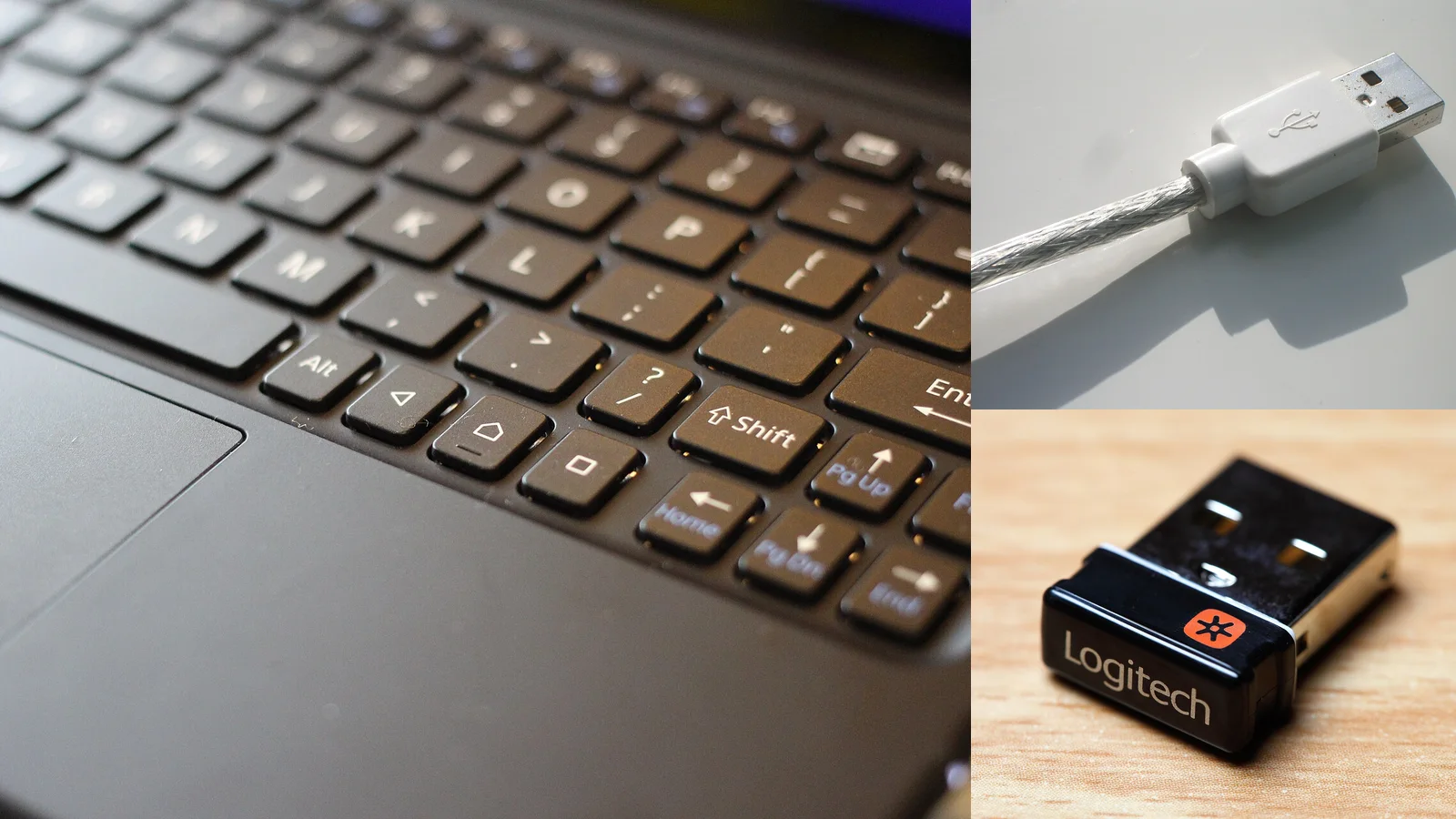
“Wired or wireless?” is only the first question. A keyboard may use a USB cable, Bluetooth, a dedicated 2.4 GHz receiver, or several of these modes. The right choice depends on your desk, devices, gaming or office workload, battery habits, and tolerance for troubleshooting.
Quick comparison
| Connection | What it does well | Trade-offs |
|---|---|---|
| USB wired | Consistent connection, no keyboard battery to charge, simple for one desk | Cable routing and a fixed position |
| Bluetooth | Low power use, direct pairing with many laptops, tablets, and phones, often multi-device | More variable latency and wake behavior; depends on the host and radio environment |
| 2.4 GHz wireless | A dedicated receiver can provide low, consistent input delay for desktop and gaming use | Receiver occupies a USB port and the keyboard needs charging or batteries |
| Multi-mode | Lets you choose wired, Bluetooth, or 2.4 GHz for different situations | More firmware, switches, pairing steps, and battery management |
Choose wired when
Choose USB wired if the keyboard stays in one place, you want to avoid charging, or you need the fewest moving parts. A wired connection is also convenient for firmware updates and diagnosing a wireless problem. A good cable does not need to be expensive, but it must support data if the keyboard communicates through it.
Choose Bluetooth when
Bluetooth suits laptops, tablets, phones, shared workstations, and people who value multi-device pairing. It is often energy-efficient, especially with backlighting disabled. It may take a moment to wake, reconnect, or switch hosts, and busy radio environments can affect stability.
Choose 2.4 GHz when
A 2.4 GHz keyboard uses a paired USB receiver rather than the computer’s general Bluetooth stack. It is often the better wireless choice for fast games or a desktop setup where consistent response matters. Keep the receiver close to the keyboard, ideally using an extension cable if the PC is under a desk or surrounded by other radio and USB devices.
Latency without the hype
Latency is not a simple wired-versus-wireless label. It includes switch scan rate, keyboard firmware, the radio link, the receiver, the operating system, and the application. Wired and 2.4 GHz models can both feel extremely responsive. Bluetooth is usually perfectly suitable for writing, coding, office work, and casual games, but its power-saving and scheduling behavior can be more variable.
For competitive or rhythm games, check independent measurements for the exact keyboard and mode rather than relying on a connection category. A wireless keyboard can be responsive, but no specification guarantees identical performance across every device, firmware version, or radio environment.
Battery life is a system trade-off
Manufacturers’ estimates vary because brightness, RGB effects, polling rate, sleep timers, battery capacity, and usage all matter. Backlighting can reduce runtime dramatically. A Bluetooth board used for occasional writing may last much longer than the same board used all day with RGB, while a 2.4 GHz receiver may trade some efficiency for responsiveness.
Before buying, check:
- Whether the keyboard uses a rechargeable battery or replaceable cells.
- Whether it works as a wired keyboard while charging.
- How it reports low battery and whether it sleeps aggressively.
- Whether RGB, high polling, or a display can be disabled.
- Whether the cable is included and supports data.
Treat an advertised runtime as a range, not a promise. Charge before a long trip or keep a wired fallback if losing input would be disruptive.
USB cable and connector basics
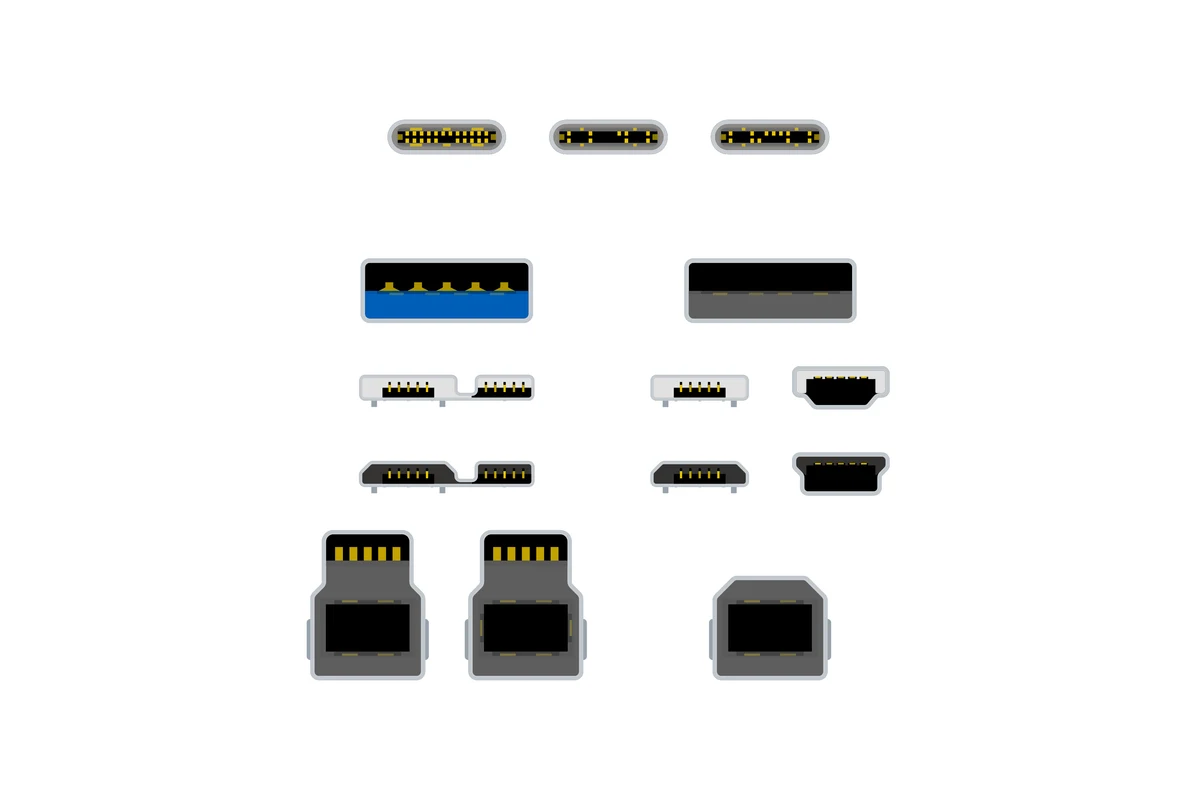

USB-C
USB-C is a small, reversible connector common on modern keyboards. It is convenient for orientation and replacement, but the connector shape alone does not tell you the cable’s data speed, charging capability, or durability. Use a known-good data cable and avoid putting sideways strain on the keyboard port.
USB-A
USB-A is the larger rectangular host connector still found on many desktop computers and older accessories. A USB-C-to-USB-A cable can connect a modern keyboard to an older host, provided the cable carries data.
Mini USB and Micro USB
These older keyboard-side connectors still work when the port and cable are healthy, but they are less common and less convenient to replace. They are reasonable on a discounted older board, not automatically a reason to reject an otherwise suitable keyboard.
Detachable versus fixed
A detachable cable is easier to replace, pack, and route. A fixed cable has one fewer connector to loosen, but a damaged cable can be harder or uneconomical to repair. For a permanent desk, either can be sensible. For travel or a custom setup, detachable is usually more flexible.
Straight versus coiled
A coiled cable is mainly an aesthetic and cable-management choice. It does not make USB faster or reduce latency. Its extra weight and spring tension can pull a light keyboard or stress a port, and its usable reach is less forgiving than a straight cable. Measure the path from the keyboard to the host before ordering one.
Put the receiver where the keyboard can hear it
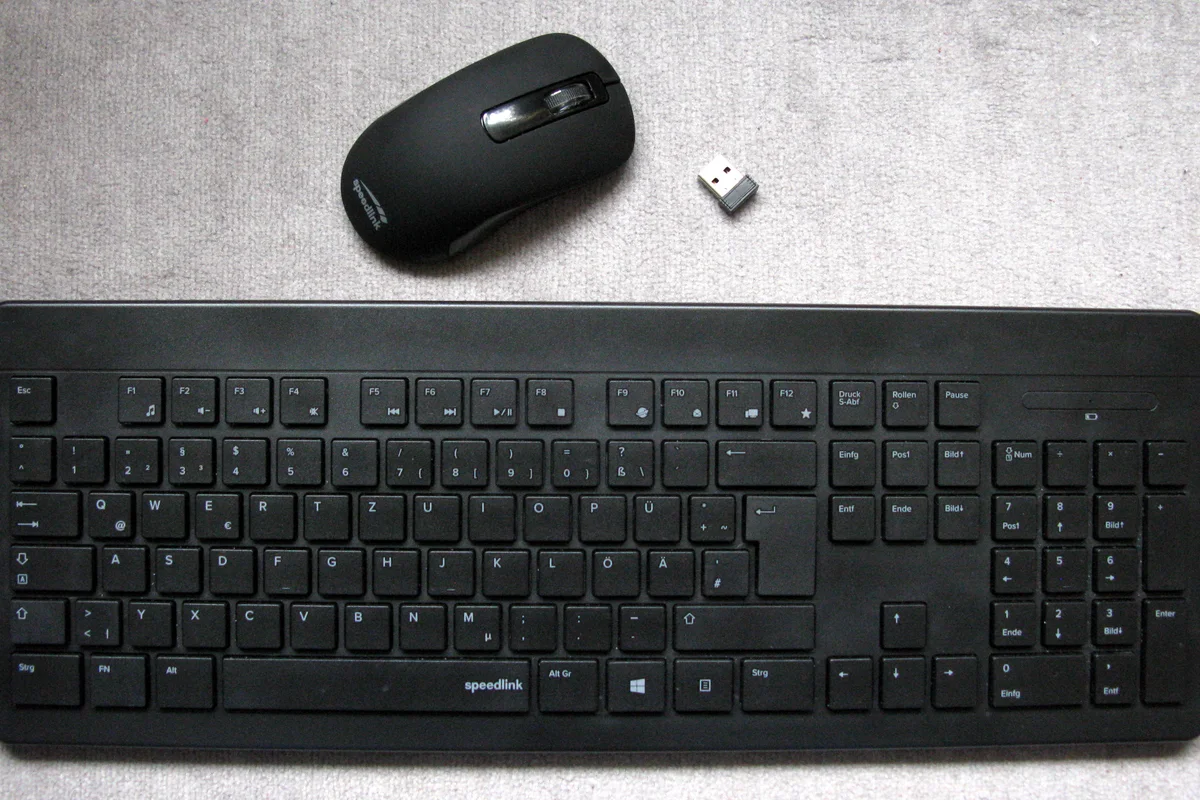

For 2.4 GHz, place the receiver in clear line of sight or use a short USB extension. Keep it away from the back of a metal PC case, crowded USB hubs, Wi-Fi access points, and other high-traffic wireless devices where possible. Bluetooth has no separate receiver on many laptops, so keep the host’s radio unobstructed and avoid stacking several adapters together.
Cable management is also functional. Avoid tight bends at the keyboard port, leave enough slack for normal movement, and replace a cable with exposed conductors or a loose connector.
A practical troubleshooting path

The keyboard is not detected
- Confirm the keyboard is powered on and in the intended mode.
- Try a different USB port, preferably directly on the computer rather than through an unpowered hub.
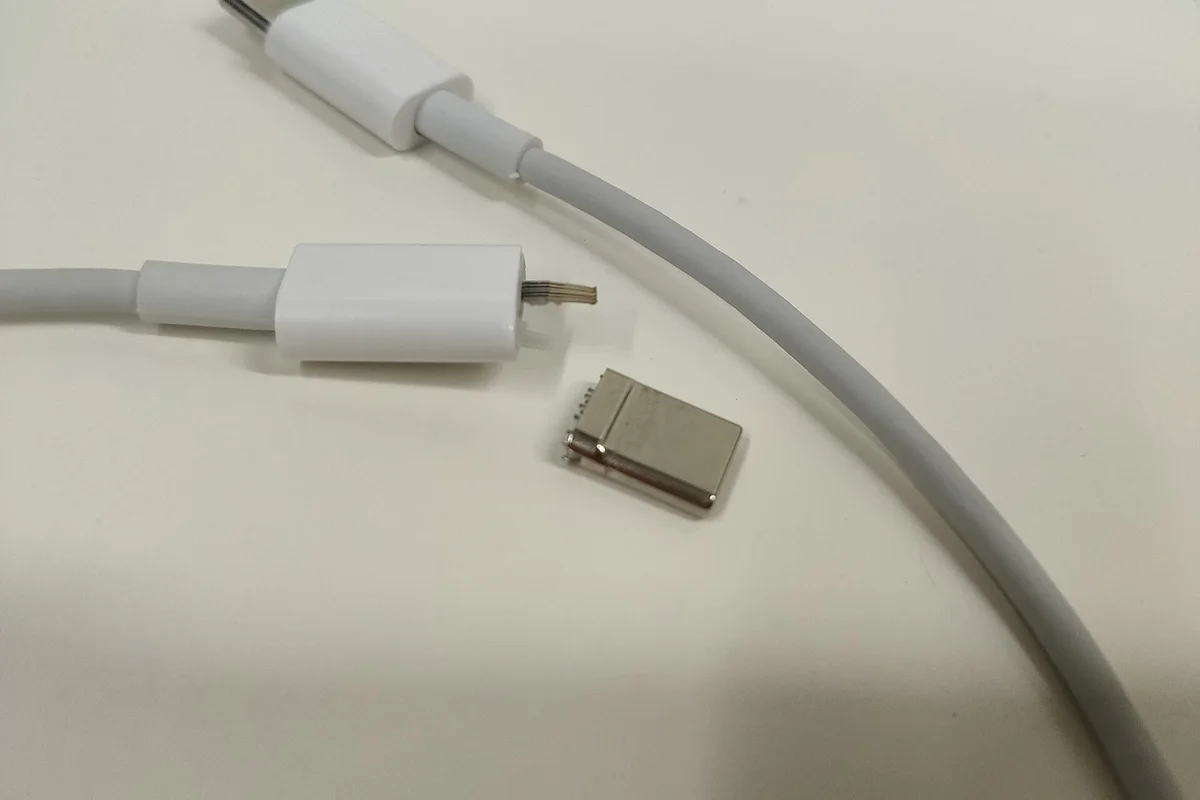
- Try a known-good data cable. A charge-only cable can power a keyboard without carrying input.
- For 2.4 GHz, reconnect the receiver and re-pair it using the keyboard’s instructions.
- For Bluetooth, remove the old pairing and pair again. Check that another device has not claimed the active slot.
- If only one computer fails, test the keyboard on another host before assuming the board is defective.
Input drops or stutters
- Charge the keyboard or replace its cells.
- Move a 2.4 GHz receiver closer and away from USB 3 hubs, metal surfaces, and dense cable bundles.
- Reduce the number of active Bluetooth devices nearby.
- Check for a loose USB-C connector or a damaged cable.
- Update firmware only from the manufacturer’s instructions, and do not interrupt the update.
It feels slow
First identify the mode. Bluetooth wake delay is different from radio interference, switch debounce, a game’s frame pacing, or a low battery. Compare wired, Bluetooth, and 2.4 GHz on the same computer and application. If only one mode is affected, its receiver, pairing, or power settings are the likely place to start.
Make the choice fit your routine
- Permanent desk, no charging: USB wired.
- Laptop, tablet, or several everyday devices: Bluetooth or multi-mode.
- Fast games with wireless freedom: 2.4 GHz, preferably with a well-placed receiver.
- One keyboard for everything: Multi-mode, if you are comfortable managing modes and battery.
For posture and mouse reach, see Desk Setup Ergonomics. For safe care of ports, cables, and battery-powered boards, read Cleaning and Maintenance. Connectivity is part of the experience, not a contest with one universal winner.