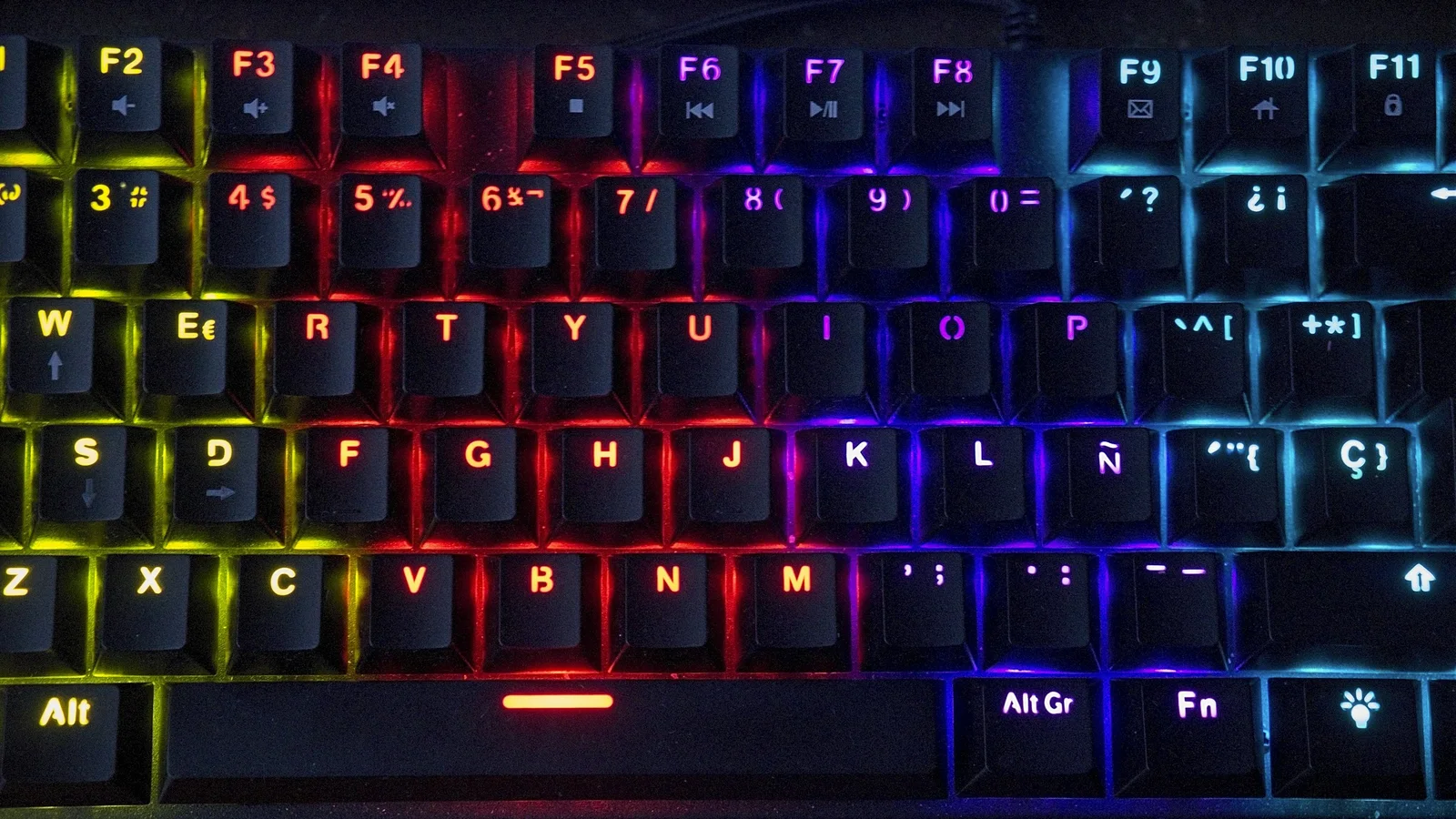
RGB lighting is a visual feature, not a typing-performance upgrade. It can help you see legends in a dim room, show an active layer on a compact board, or make a desk setup feel more personal. It can also add cost, software dependencies, and battery drain.
The useful question is not “Does RGB look impressive?” It is “Which lighting hardware and controls will help with the way I use this keyboard?”
What RGB means
RGB stands for red, green, and blue. A keyboard mixes those color channels to produce different colors through LEDs. “RGB keyboard” is a broad label, though: it may mean individually controlled LEDs, zones, underglow, or only a few preset effects.
RGB is different from backlighting as a capability. A board can have a single-color backlight, RGB backlight, underglow, both, or no lighting at all.
Four common lighting types
Per-key RGB
Each key position has an LED or lighting channel that can be controlled separately, at least in the modes the hardware and firmware expose. Per-key control can highlight a group of keys, show a layer, or create animations.
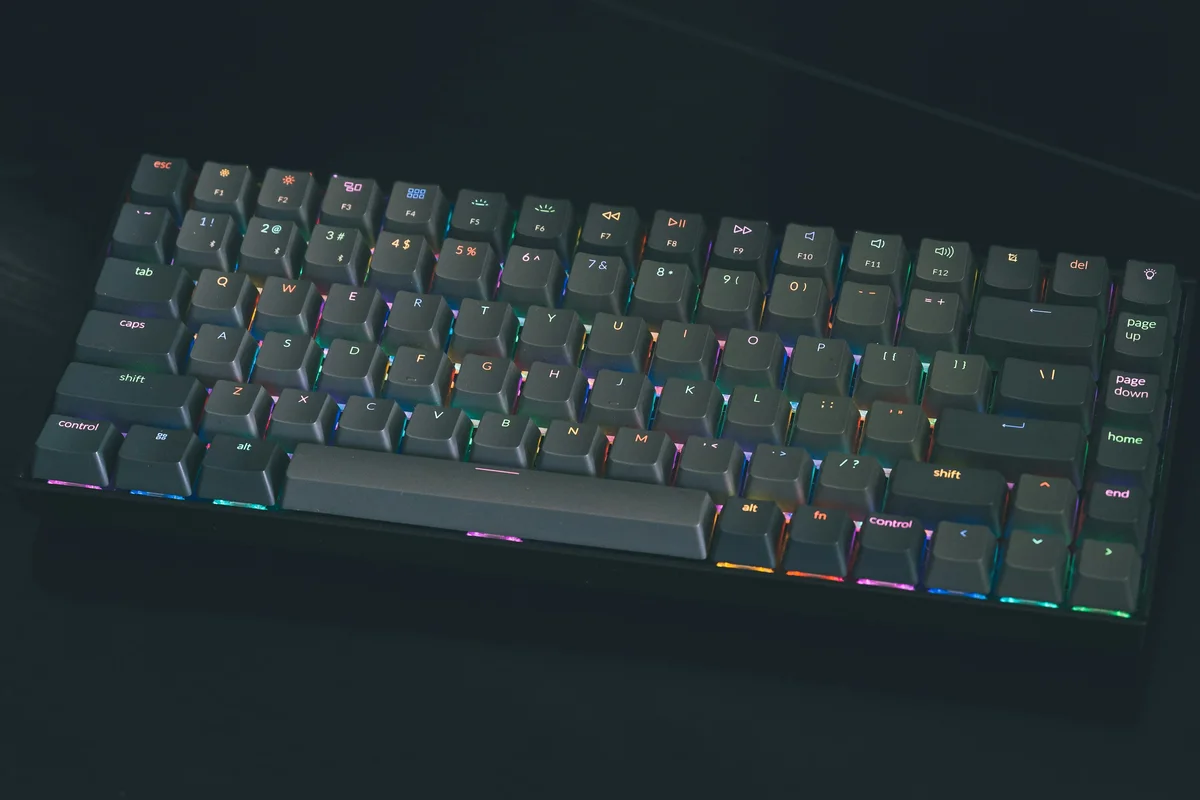
Per-key RGB is most useful when:
- the keycaps let light through the legends or sides;
- you want visual layer or shortcut cues; or
- you value per-key colors and effects enough to configure them.
A keycap set can limit the result. Opaque keycaps may hide the LED even when the keyboard supports per-key RGB, and LED position affects how evenly a legend is lit.
Underglow
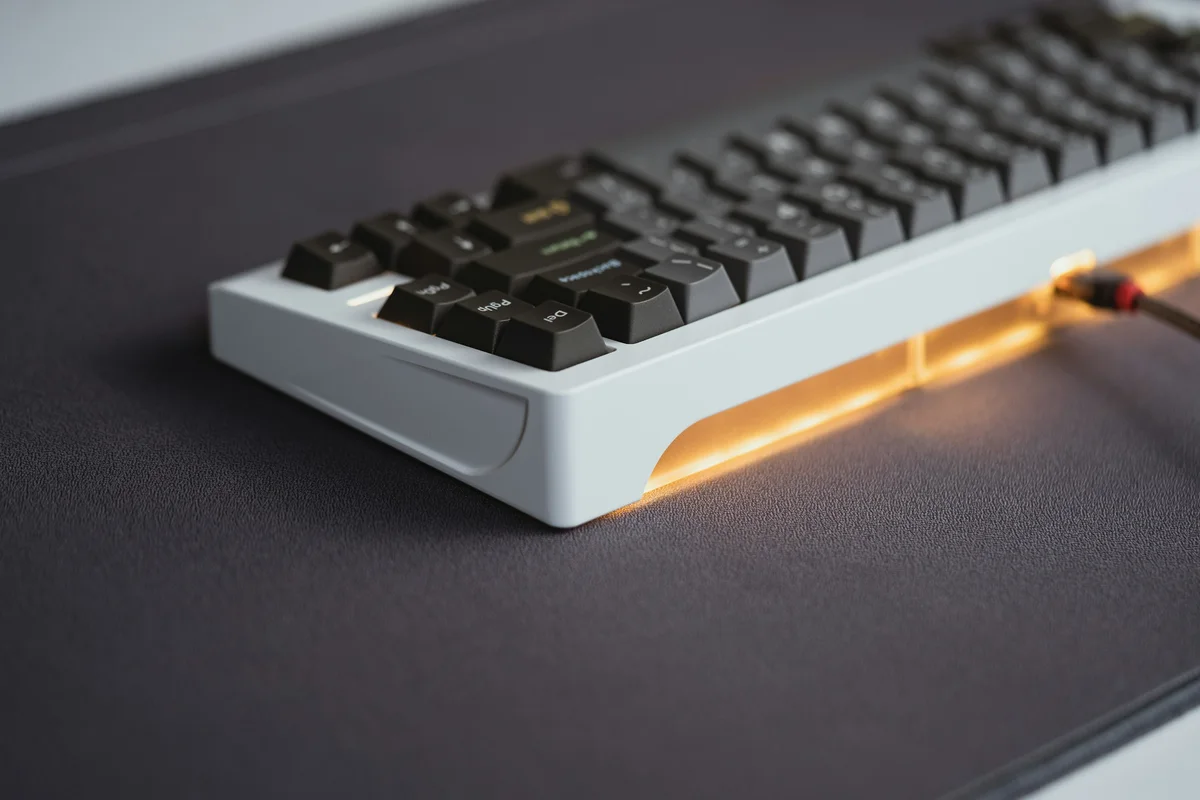
Underglow LEDs shine below the keyboard or around its edge. They light the desk or case perimeter, not the key legends. Underglow can look excellent with a floating case, but it should not be sold as a substitute for usable key backlighting.
Single-color backlight
A single-color backlight illuminates keys in one color, often with adjustable brightness and a few effects. It can be a practical choice when visibility matters more than color customization. White light does not automatically work with every keycap: legend design, opacity, and LED placement still matter.
No lighting
A board without LEDs can be the right choice. It avoids lighting software, uses less power on a wireless keyboard, reduces visual distraction, and leaves more budget for switches, keycaps, build quality, or ergonomics.
Does RGB change typing feel or speed?
No. LEDs do not determine switch force, travel, keycap shape, stabilizer behavior, or the acoustics of the case. Those are mechanical and electronic design choices separate from the lighting effect.
Lighting can still change how a keyboard feels to use indirectly. A bright animation may distract you, a layer color may reduce uncertainty, and a readable legend may make a dim workspace easier. Those are practical or personal benefits, not a faster switch response.
Useful RGB applications
Seeing keys in low light
A steady, low-brightness white backlight is often more useful than a rainbow animation. It works best when the legends and keycaps are designed to transmit light. Touch typists may gain little from lighting if they already know the layout.
Showing layers and shortcuts
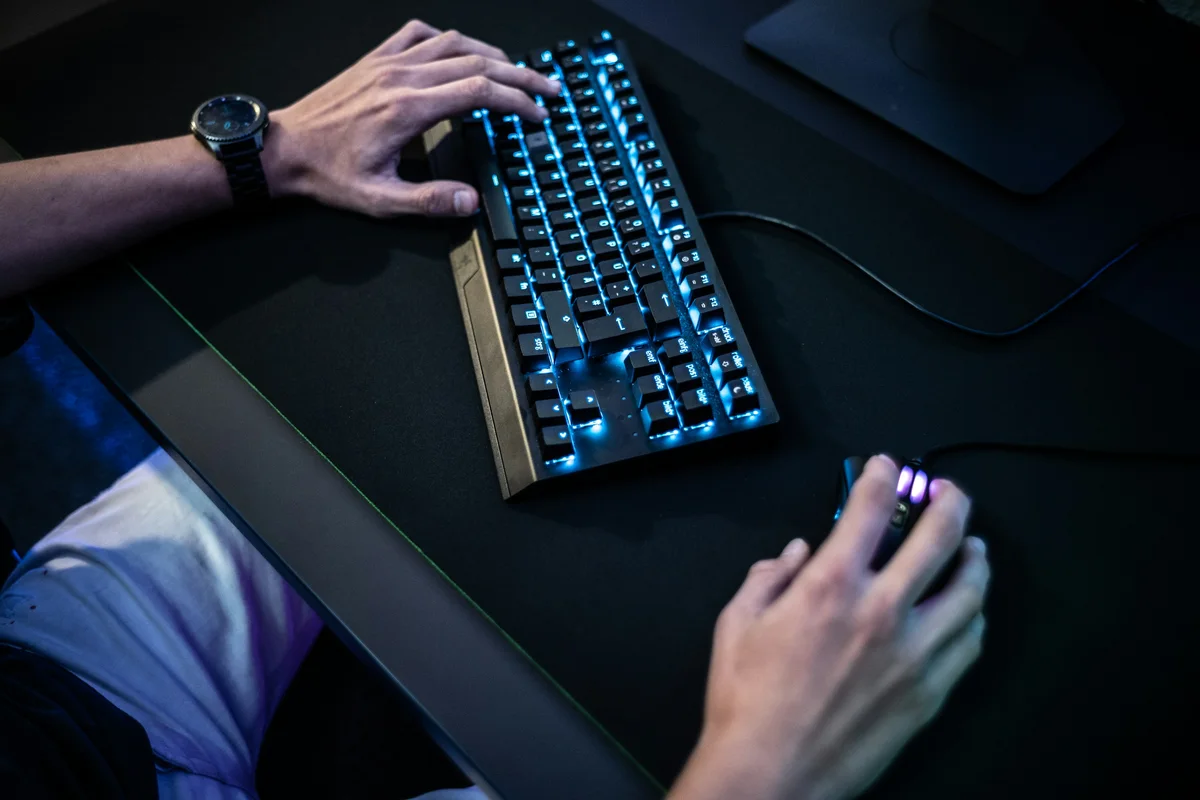
On a 60% or 65% board, a layer can put arrows, function keys, or media controls under the same physical keys as letters. A firmware configurator may let you color those keys while the layer is active. This is a real usability aid when the colors are restrained and consistent.
For the underlying concept, see keyboard programming and layers.
Desk atmosphere and status cues
Underglow or a static color can make a workspace feel less stark. Some software can also expose notifications or game status through lighting. Treat integrations as optional: they depend on the keyboard, firmware, operating system, application, and vendor software, and they may be distracting or unavailable outside that ecosystem.
Compatibility: what to check before buying
“RGB” alone does not tell you what you can control. Check these details:
- Where are the LEDs? Per-key backlight and underglow solve different problems.
- Are the keycaps compatible with the LED position? North-facing, south-facing, centered, or edge-mounted LEDs can illuminate different legends differently. Product documentation matters.
- What does the firmware expose? VIA, QMK, vendor software, and onboard shortcuts may offer different controls. QMK support does not automatically mean VIA support, and neither guarantees every lighting feature.
- Is the lighting addressable? Individually controlled LEDs provide more options than a single zone, but the board may still restrict effects or color depth.
- Does the connection mode change features? A wireless board may limit brightness, animations, or software control to protect battery life.
- Can you use it without an account or background app? If that matters to you, look for onboard effects and hardware shortcuts rather than relying on desktop software.
Read keyboard anatomy to understand the PCB, switch, plate, and case choices that sit underneath the lighting specification.
Power and heat trade-offs
LEDs consume additional power. Bright white output and full-board animations generally draw more than a dim static color, although the exact behavior depends on the board and controller. On a wired keyboard, extra lighting load can contribute to flicker or dimming if the board, cable, hub, or port cannot provide stable power. On a wireless keyboard, the most visible trade-off is shorter battery life.
If lighting flickers, cuts out, or causes the board to disconnect:
- lower brightness and disable animations;
- connect directly rather than through an unpowered hub;
- try a known-good data cable for wired testing;
- test with lighting off to separate power behavior from input behavior; and
- check the manufacturer’s stated limits before changing firmware or opening the case.
Do not bypass a protection circuit or add an improvised power source. A lighting fault accompanied by heat, a burning smell, or a damaged battery is a stop condition. Use safe keyboard troubleshooting steps instead of repeated reconnects.
Is RGB worth paying for?
Choose RGB when you will use its visibility, layer indication, per-key customization, or atmosphere. Choose single-color backlighting when you mainly need to see legends. Choose no lighting when you touch-type, work in good light, prefer simplicity, or want to preserve wireless battery life.
Prioritize switches, keycap compatibility, layout, connectivity, and build quality before decorative effects. RGB is most worthwhile when it solves a small, repeatable problem rather than when a product page promises that more colors will make the keyboard perform better.